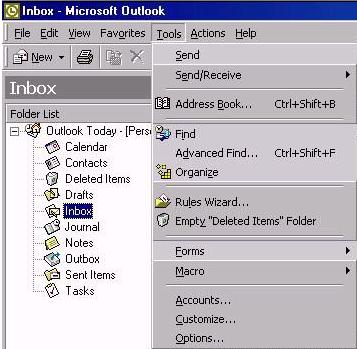
Open the Outlook mail application. Click on the "Tools" drop down menu and select "Accounts...".
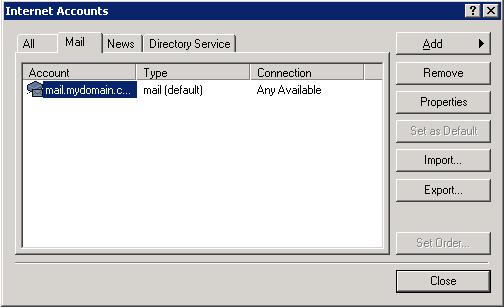
Select the "Mail" tab, then click on the email account you are re-configuring. Then click on the "Properties" button.
In the new window In the "Incoming Mail Server" category enter your user name This email address is being protected from spambots. You need JavaScript enabled to view it. (replace account with the name or word that appears in front of the '@' symbol, and replace mydomain.com with your domain name).
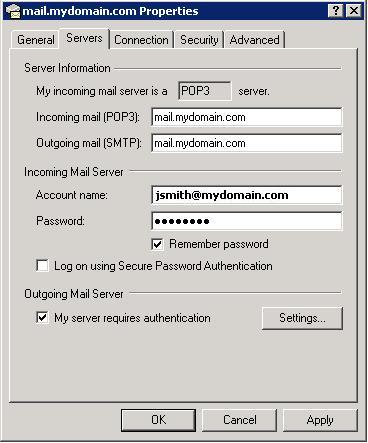
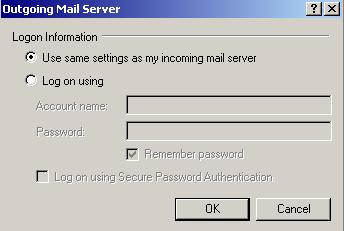
Under the category "Outgoing Mail Server" enter a check mark in the box for "My server requires authentication". Click the button "Settings.." and ensure the option "Use same settings as my incoming mail server" is selected.
Once all settings have been confirmed, click on the "OK" button at the bottom of the window, again click "OK" in the next window, and at the final window that is visible click on "Close" on the bottom right.